
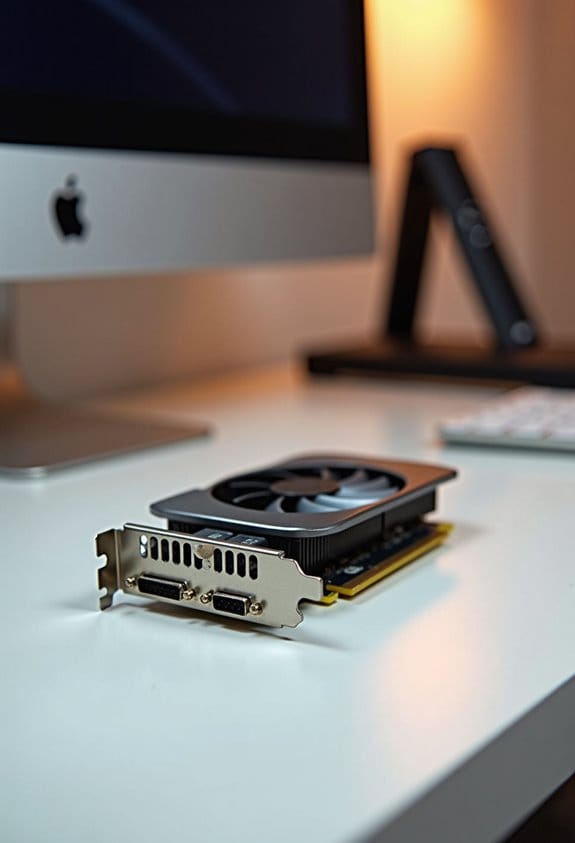

PCIe slots are essential connections on the motherboard that enable fast communication with add-on cards, like capture cards. They come in different sizes, such as x1, x4, x8, and x16, which determine data transfer speeds. For high-resolution video capture, using a x16 slot is ideal as it offers significant bandwidth. It’s important to guarantee compatibility in width and generation when selecting a slot for your capture card. Discovering how to choose and troubleshoot these slots can truly enhance your setup.
Key Takeaways
- PCIe slots are high-speed connections on motherboards that facilitate communication between components, such as graphics cards and capture cards.
- Capture cards require specific PCIe slot sizes (x1, x4, x8, x16) depending on their bandwidth needs and performance requirements.
- Compatibility is crucial; ensure the capture card matches the PCIe slot’s width and generation to avoid performance issues.
- Higher lane counts (like x16) are recommended for demanding tasks, such as capturing high-resolution video.
- Regularly check and update drivers, and inspect physical connections to ensure optimal performance of capture cards in PCIe slots.
What Are PCIe Slots and Why Are They Important?

Hey there! Have you ever wondered what PCIe slots are and why they matter for your computer? Think of PCIe slots as the highways of your PC—they connect important add-on cards to the motherboard and help everything communicate super fast. Whether you’re adding a powerful graphics card for gaming, a network card for better internet speeds, or a capture card for streaming, these slots play a crucial role in ensuring data zips around seamlessly.
Each PCIe slot has a certain number of data lanes, which determine the speed and performance of the connected cards. They come in sizes like x1, x4, x8, and x16, with x16 slots being the most common choice for high-performance components, like dedicated graphics cards, since they need more bandwidth to function at their best. Plus, thanks to the ongoing improvements from PCIe 1.0 all the way to PCIe 6.0, the amount of data these slots can handle has skyrocketed to an impressive 64 GB/s.
The coolest part? You can often use newer PCIe cards in older slots. They’ll work, but just at reduced speeds, which means you don’t always have to replace your whole system to keep up with new tech. Just make sure to install everything properly to get the best connection possible.
This makes PCIe slots an ideal choice for adding capture cards that support high-quality video streaming and low latency performance. So, now that we’ve covered PCIe slots, let’s take a look at some of the types of expansion cards that utilize these slots and how they can enhance your system!
How PCIE Slots Work With Expansion Cards

Hey! Let’s chat about how PCIe slots work with expansion cards and boost your computer’s performance. Think of PCIe slots as high-speed highways connecting your motherboard to various cards, like graphics cards or capture cards. Each lane in these slots has pairs for sending and receiving data, which really affects how quickly everything runs.
For example, a PCIe x16 slot—typically used for high-demand tasks like gaming or 3D rendering—can push up to 32 GB/s of bandwidth at PCIe 4.0. That’s impressive when you’re trying to get the best graphics performance. On the other hand, if you’re using a capture card that fits into a smaller x1 or x4 slot, that’s okay too. It still works, but its performance will depend on what you’re trying to do.
The cool part is that PCIe cards from newer generations can still work in older slots, just at slower speeds. So, if you decide to upgrade later, you won’t have to toss out your existing cards. It’s all about finding the right balance for what you need. Now, let’s look at some specific types of expansion cards that can take advantage of these slots!
Many capture cards also feature ultra-low latency to ensure smooth and synchronized video and audio streaming during gameplay or live broadcasts.
Recommended Products

【Powerful Processor and Graphics】The MS-02 Ultra Mini Workstation is equipped with Intel Core Ultra 9 Processor 285HX(24C/24T,up to 5.5 GHz) that uses a hybrid architecture. featuring the built-in Intel Graphics(max frequency up to 2GHz) to enhance the user experience with graphics acceleration and ray tracing hardware. It is designed for next-generation efficient high-performance gaming and widely used in games, 3D rendering, video editing and teleworking.
【Powerful Processor & Graphics】The MS-02 Ultra Mini Workstation is powered by an Intel Core Ultra 9 Processor 285HX (24C/24T, up to 5.5 GHz) built on a hybrid architecture. It features integrated Intel Graphics with a maximum frequency of up to 2.0 GHz, delivering enhanced graphics acceleration and hardware ray tracing for an elevated user experience. Engineered for next‑generation efficient high‑performance computing, it excels in gaming, 3D rendering, video editing, and remote work.

Four Independent SDI Inputs – PCIe capture card with 4× SDI inputs for simultaneous multi-camera or multi-source capture in broadcast, AV, and enterprise environments.
Understanding the Different Sizes and Lanes of PCIe Slots

Hey there! Let’s chat about PCIe slots and how their different sizes and lanes can really make a difference in building or upgrading your computer. You’ll find PCIe slots come in sizes like x1, x4, x8, and x16. Each of these sizes tells you how many lanes are available for sending data. For instance, if you’re adding a sound card, a small x1 slot is perfect because it doesn’t need much bandwidth. But if you’re planning to install a powerful graphics card, you’ll want to go for an x16 slot since it can handle the heavy lifting—allowing that card to perform at its best.
Think of lanes like highways for data. An x16 slot, especially one with PCIe 4.0, can deliver up to 32 GB/s—pretty impressive, right? And here’s a handy tip: if you happen to have a smaller card, like an x1 or x4, you can still pop it into a larger slot. It will fit just fine, but remember, it’ll only work with the lanes it was designed for. So, you won’t tap into that extra bandwidth, but at least you’re making the most of the space!
This knowledge can save you a lot of headaches down the line, especially when you’re trying to select the right parts for your rig. Many capture cards, crucial for streaming and gaming, rely on PCIe slots that support high transfer speeds to ensure ultra-low latency performance. Now that you’ve got the basics of PCIe slots, let’s move on to understanding their compatibility with different motherboards.
Recommended Products

NVIDIA GEFORCE RTX 5090 GPU - The 5090 employs top-tier Blackwell architecture with extreme 4th gen RTX ray-tracing capabilities (4K/UHD) & an astounding 32 GB of GDDR7 memory (28 Gbps); DLSS 4.0 enhanced frame rate performance supported

API Supported: DirectX 12 for advanced graphics rendering and gaming performance

What Is the Impact of PCIe Lane Count on Performance?
Hey there! So, have you ever wondered how the lane count of a PCIe slot impacts performance? It’s actually pretty interesting! Each PCIe lane can deliver around 1 GB/s of bandwidth. This means that if you have your capture card in a PCIe x4 slot, it can transfer data at much higher speeds than if it were in a x2 slot. For example, if you’re streaming or capturing 4K video, every bit of speed helps.
Now, let’s say you’ve got an amazing graphics card. If you plug it into an x8 slot instead of an x16 slot, you might run into some bottlenecks. This can impact your performance, especially when you’re trying to work with multiple streams of high-resolution video. To really make sure everything runs smoothly and you avoid issues like dropped frames, it’s best to use a configuration that maximizes lane count, like the x16 slots.
Understanding how PCIe lane count works can really help you set up your system for the best performance possible. If you’re looking to optimize your setup further, it’ll be good to keep these lane configurations in mind as you explore other components!
Capture cards like the Elgato 4K60 Pro MK.2 use a PCI Express x4 interface to support high-resolution video capture with ultra-low latency, making the lane count especially important for smooth streaming and recording.
Recommended Products

Latest Revision b card. Much better than a card in terms of frame rate and resolution

Dual-Channel HDMI Capture – PCIe capture card with two independent HDMI inputs for simultaneous capture of two HD video sources.

DVB-S/S2/S2X: Support DVB-S, DVB-S2 and DVB-S2X standard
How to Choose the Right PCIe Slot for Your Capture Card
Choosing the right PCIe slot for your capture card is pretty straightforward once you know what to look for. First off, make sure the slot you select matches your card’s width and generation. For example, if you have a PCIe x4 capture card, it’s best to pop it into either an x4, x8, or x16 slot to really get that performance boost.
Next, it’s important to check your motherboard specifications. Sometimes, certain slots can go inactive when you have M.2 devices installed. You wouldn’t want to end up in a situation where your slot isn’t even active when you need it!
Also, think about bandwidth—this is crucial. If you’re capturing 1080p video at 60 frames per second, you need a strong enough connection to prevent any hiccups during the transfer. Just as a rule of thumb, an x4 slot should provide enough bandwidth for that. And don’t forget about power requirements! Some higher-end capture cards might need an extra power connector, so check that too.
Lastly, make sure your capture card is compatible with your PCIe version. If your card is designed for PCIe 4.0, it can still work in a PCIe 3.0 or 2.0 slot, but it might not perform at its best, which could impact the quality of your capture. In the end, taking a little time to ensure everything matches up can really pay off in your content creation. Speaking of capturing content, let’s talk about optimizing the settings on your capture card next! Remember, choosing a capture card that supports 4K HDR passthrough ensures you maintain excellent color accuracy and detail during streaming.
Recommended Products
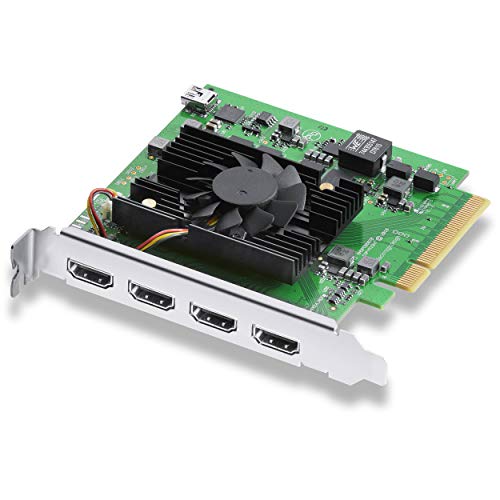
Quad HDMI Connections: Equipped with four HDMI 2.0b connections allowing for simultaneous capture of multiple HDMI sources (8, 10, 12-bit RGB 4:4:4 in all modes up to 4Kp30 DCI and 8, 10-bit YUV 4:2:2 in all modes.

MULTIPLE DIGITAL TV STANDARD: Supports DVB-S2X/S2/S/T2/T/C2/C/ISDB-T, four RF IN is independent with each other, With this multi-standard TV tuner card, it is much easier to switch between different digital TV signals.

DVB-T2/C2/T/C(J.83A/B/C)/ISDB-T/C /ATSC1.0 TV RECEIVING: With PCI-Express interface to receive DVB-T2/C2/T/C(J.83A/B/C)/ISDB-T/C /ATSC1.0 SD or HD TV receiving standard signal at the same time
Troubleshooting Common PCIe Slot Issues
Having PCIe slot issues can be really annoying, right? First things first, let’s make sure your component is snug in the PCIe slot — a loose connection can really throw things off. And don’t forget to check for any dust or gunk around the slot. Even a little buildup can mess with performance, so give it a good clean if needed.
After that, hop into your BIOS settings to make sure the PCIe slot is actually enabled. Sometimes, a simple setting can cause a lot of headaches. If you’re still facing issues, try moving the component to another PCIe slot or even testing it in a different machine. This can help you figure out if the problem is with the slot or the component itself.
Another crucial step is making sure your drivers are up to date. Outdated drivers can often lead to compatibility headaches, making it hard for your system to recognize the components. Lastly, take a peek for any physical damage, like bent pins — those can definitely cause trouble too.
If you are installing a video capture device, ensure it meets the resolution quality requirements for optimal performance.
Once you’ve checked all that, you’ll have a better idea of where the problem lies, and we can troubleshoot further if needed!
Recommended Products

【Powerful 10-Core i5 Performance】--- This reliable HP 17.3 Business Laptop is equipped with a 10-core Intel Core i5-1334U processor, Experience responsive performance with clock speeds up to 4.6GHz for delivering ultra-smooth running speed for daily multitasking, office document processing, web browsing and media streaming,it fully meets the daily work and study needs of professionals and students with stable and efficient performance.

Positive air pressure design for excellent cooling/quietness and dust-prevention

Compatible with SD, SDHC, and SDXC card slots.
Frequently Asked Questions
What PCIE Slot Does a Capture Card Use?
A capture card typically uses PCIe x1 or x4 slots based on its bandwidth requirements. Installation involves checking motherboard layout, ensuring compatibility, and considering card dimensions, while addressing latency concerns and thermal considerations for ideal performance differences.
What Are Different PCIE Slots Used For?
PCIe slots, the superheroes of data transfer, serve diverse roles: graphics cards release visual prowess, SSD expansions enhance high-speed storage, networking cards optimize connections, while sound cards and RAID controllers cater to specialized data acquisition and processing needs.
Is PCIE 4.0 Better Than 3.0 for Gaming?
PCIe 4.0 enhances gaming performance by addressing bandwidth requirements and improving frame rates, future-proofing systems for high-resolution demands. It also aids in thermal management and power consumption while ensuring greater hardware compatibility, despite potential motherboard limitations.
What Happens if You Put a PCIE 4.0 GPU in a 3.0 Slot?
Installing a PCIe 4.0 GPU in a PCIe 3.0 slot leads to performance bottlenecks due to bandwidth limitations, while upgrade considerations involve slot generation differences, affecting future-proofing, cooling solutions, and overall cost vs performance dynamics.


