
To optimize streaming bitrate, one must consider the platform specifics. For YouTube, aim for 4,500 to 6,000 kbps at 1080p and 30 fps. Twitch suggests a similar range, increasing to 4,500 to 6,000 kbps for 60 fps. Facebook Live works well around 4,000 kbps for 1080p. It’s crucial to guarantee upload speed exceeds bitrate by 1.5 times for smooth streaming. Testing your setup can enhance viewer experience, and there’s more to discover about effective strategies.
Key Takeaways
- Determine the target bitrate for each platform, such as YouTube’s 4,500-6,000 kbps for 1080p at 30 fps.
- Ensure your upload speed is 1.5 times higher than the selected bitrate for seamless streaming.
- Use a constant bitrate (CBR) setting for platforms like Twitch to minimize buffering issues.
- Conduct test streams to evaluate performance and adjust settings based on viewer experience.
- Implement Adaptive Bitrate Streaming (ABR) to dynamically optimize video quality based on viewer connection speeds.
Understanding Streaming Bitrate Across Key Platforms

If you’re looking to stream your favorite content, you might be curious about how to get the best video quality without messing with your performance. Streaming bitrate is a key factor in this and varies across different platforms, so let’s break it down! For YouTube, if you’re streaming at 1080p with 30 frames per second, you’ll want to aim for a bitrate between 4,500 and 6,000 kbps. This range helps ensure you present your videos in the best light.
Over on Twitch, the ideal bitrate is a little more flexible, ranging from 3,000 to 6,000 kbps depending on what you’re streaming. For example, if you’re playing a fast-paced game, you might want to aim higher to maintain quality. On Facebook Live, they recommend a bitrate of around 4,000 kbps for 1080p, which keeps things running smoothly. Instagram Live, on the other hand, keeps it cozy at about 3,000 kbps, making it a great fit for those with slower internet speeds.
If you’re using OBS to stream, a good sweet spot is around 4,000 kbps. This setting strikes a nice balance between maintaining clear video and keeping things running without a hitch. By adjusting your streaming bitrate based on these recommendations, you’ll not only improve compression efficiency but also create a better viewing experience for your audience. Now, let’s explore how to optimize your setup for even smoother streams! Using a high refresh rate monitor can also help you view your stream more smoothly while making real-time adjustments.
Recommended Bitrate Settings for YouTube Streaming

Hey! Let’s chat about the right bitrate settings for streaming on YouTube. Getting the bitrate just right can really enhance your viewing experience. If you’re streaming at 1080p and want to keep things smooth at 30 frames per second (fps), aim for a bitrate between 4,500 and 6,000 kbps. That range ensures your video looks sharp and clean.
Now, if you’re going for that crisp 60fps action, you’ll want to increase your bitrate to between 6,000 and 9,000 kbps to keep up with the higher frame rate. For example, if you’re streaming a fast-paced game like *Call of Duty*, having that higher bitrate will help maintain the detail you need during those intense moments. If you’re on a 720p stream, shooting for a bitrate of 1,500 to 4,000 kbps strikes a nice balance between quality and performance.
One essential tip is to make sure your upload speed is about 1.5 times your target bitrate. So if you set your bitrate to 6,000 kbps, your upload speed should be at least 9,000 kbps. This little trick can help you avoid those annoying buffering issues, especially when things get hectic in your stream. By setting everything up right, you can really make the most of your experience on YouTube, whether you’re streaming games, vlogs, or anything else! Using a low-latency capture card can further enhance your stream’s real-time quality and viewer experience.
Recommended Products

World’s first 1.0-inch type stacked Exmor RS imaging sensor, Flexible 4K and Full HD recordings (XAVC Long GOP at 100Mbps), HFR 120 fps Super Slow Motion (continuous), Clear Image Zoom (24x for HD, 18x for 4K)

✔️Bundle Accessories - Along with the accessories from Sony, the Sony Alpha 7C R bundle Includes additional accessories such as, Pixel Hurricane Blower, Pixel Connection Essential Cleaning Kit, 3-in-1 USB-C Card Reader, Microfiber Cleaning Cloth, Pixel Camera Backpack, 64GB SD Card, Pixel Compact 65" Monopod.

Intel Core Ultra 7 155U, 12C (2P + 8E + 2LPE) / 14T, Max Turbo up to 4.8GHz, 12MB. This new Intel Core Ultra processor delivers the next generation of hybrid architecture for supercharged computing. Thanks to a three tier multi-processing unit, business users can manage complex workloads by sending the right task to the right engine at the right time. A CPU manages lightweight low-latency AI tasks, a GPU manages media and visual AI rendering, and an NPU, manages sustained AI and AI offload.
Twitch Bitrate Tips for Gamers

Hey there! If you’re thinking about streaming on Twitch, picking the right bitrate is super important. To really make your stream pop with amazing quality, you’ll want to aim for a bitrate between 4,500 and 6,000 kbps if you’re going for 1080p at 60fps. This ensures your viewers enjoy crisp visuals that really hold their attention. Just a heads up—make sure your upload speed is at least 6 Mbps. This will help keep things smooth so you can respond to your chat without any lag.
Oh, and here’s a little tip: using a constant bitrate (CBR) setting can really help cut down on buffering problems while you’re gaming live. If you notice things getting choppy for your viewers, consider reducing your bitrate to around 4,000 kbps. For those who have a bit slower upload speed, streaming at 720p at 30fps with about 3,000 kbps can still provide a stable and enjoyable experience for your audience.
For an optimal streaming setup, consider investing in ambient LED lights to enhance your streaming environment and keep your viewers engaged.
Recommended Products

【Bright 4K Decoding & AI-PQ Enhanced Colors】This high-brightness projector supports 4K UHD video decoding with HDR10+ and AI-PQ picture enhancement. Equipped with a 6-color LED light source and wide DCI-P3 color gamut, it delivers vivid, true-to-life visuals. 2300 ANSI lumens bring clear, sharp images even in daytime indoor environments. Perfect for movies, gaming and daily streaming. Not suitable for direct strong outdoor sunlight.

DYNAMIC USB MICROPHONE FOR PC, GAMING & STREAMING – The BEACN Light captures rich, full-bodied vocals while rejecting keyboard clicks, fan noise, and room echo. Get broadcast-quality sound with direct USB-C connection - no audio interface, no mixer, no extra gear. The ideal desktop microphone for gaming, streaming, podcasting, and content creation right out of the box.

🎮【Customize】 personalized custom your neon lights in any way you want , so you can choose colors, sizes, fonts, and custom lines of text
Configure OBS for Optimal Bitrate Settings
Hey there! If you’re looking to optimize OBS settings for bitrate, I’ve got some helpful tips for you. Start by thinking about the quality you want for your stream. For a solid 1080p video at 30 fps, a bitrate around 4000 Kbps is usually perfect—it strikes a nice balance between quality and performance. For audio, set your bitrate to 160 Kbps for clear sound.
Now, if you’re planning to stream at 60 fps, you’ll want to bump up that video bitrate to somewhere between 4500 and 6000 Kbps. This way, you’ll maintain smooth motion without losing clarity in your stream. And don’t forget about using the advanced output mode in OBS! It allows you to fine-tune both your streaming and recording settings individually.
While you’re live, keep an eye on your stream statistics. This can help you spot any potential buffering issues right away so you can adjust things on the fly. It’s pretty crucial for making sure your viewers have a smooth and enjoyable experience. Now that you’ve tackled bitrate settings, let’s talk about the best resolution settings to use for your stream!
Using a capture card with 4K60 passthrough can enhance your stream’s visual quality and reduce latency for a better viewer experience.
Recommended Products

【2-in-1 PTZ Controller & Video Switcher】Seamlessly control up to 4 PTZ cameras via VISCA/VISCA-over-IP with the integrated 4D joystick. (No Extra PTZ Controller Needed")Enjoy intelligent one-touch AI tracking (Ctrl+CAM1-4), 10 programmable presets with one-click recall, and adjustable pan/tilt/zoom speeds—empowering solo operators to deliver professional multi-camera live streams without extra gear.

AVKANS PTZ camera with 20X Simultaneous 3G-SDI HDMI USB IP Live Streaming AI Tracking PTZ Camera. PoE Supports. Ideal choice of live streaming camera for Church, House of worship, Education, Weddings, Broadcasting, Video Conference, E-sports, live Events etc.

AVKANS Go Wireless Camera 4K with 90 degree wide angle lens, Live stream and record in stunning 4K UHD resolution 30fps.🌟 With Newer Firmware and All Brand New App now, AVKANS go now is more powerful and stable than Mēvò. Connectivity issue was fixed, Focus issue was fixed, Image Quality was improved.🌟 Android is Not so Functional Yet !
What to Think About for Facebook Live Streaming Bitrate?
If you’re gearing up for Facebook Live streaming, one of the first things you’ll want to think about is the bitrate. Essentially, bitrate determines how smoothly your video plays for viewers, so getting it right is super important! For 720p streaming, aim for a bitrate between 1,500 kbps to 4,000 kbps. If you’re going for the higher quality 1080p, you’ll want to bump that bitrate up to between 4,000 kbps and 6,000 kbps.
Also, don’t forget about audio! Setting your audio bitrate to around 128 kbps can help ensure your sound is crisp and clear. An easy way to check if you’re on the right track is to make sure your upload speed is at least 1.5 times the bitrate you’ve chosen. For instance, if you’re streaming at 4,000 kbps, your upload speed should ideally be at least 6,000 kbps to avoid any annoying buffering issues.
Oh, and when it comes to video codecs, stick with H.264. It strikes a nice balance between quality and file size, which is crucial. For those looking for efficiency, a resolution of 720p at 30 frames per second can work well, especially if bandwidth is a concern. Remember, the smoother your stream, the more enjoyable it is for your audience, which leads to better engagement overall! Speaking of engaging content, let’s talk about how to make your broadcast truly stand out next!
Using equipment with advanced stabilization technology can significantly improve the visual quality of your stream by reducing shaky footage.
Recommended Products

Input:16 Channel HDMI input,1920*1080,1680*1056,1280*720,1024*576,960*540,850*480,720*576,720*540,720*480,720*404,704*576, 640*480,640*360...320*180; 16 Channel line in audio(3.5MM audio jack)

Video Connections: HDMI, 3G-SDI & IP Streaming

Manufacturer - Axis Communications Inc
Methods to Effectively Test Your Streaming Bitrate
Figuring out your ideal streaming bitrate is just the start of your streaming journey. To really nail it, you need to put your setup to the test, ensuring your video delivers quality even if your upload bandwidth isn’t top-notch. First things first, grab a reliable speed test tool—you want to check your actual upload speed. Ideally, your upload speed should be at least 1.5 times your target bitrate. So, if you’re aiming for 4,500 kbps, make sure your upload speed is around 6,750 kbps or higher.
Once you’ve confirmed your speed, it’s time to test stream on your platform of choice. Platforms often have their own guidelines, like suggesting between 4,500 and 6,000 kbps for 1080p at 30fps. As you stream, use tools like OBS Studio to keep an eye on your bitrate. If you notice it jumping around a lot, that’s a sign you might need to tweak some settings. And if you really want to boost your stream quality, consider adaptive bitrate streaming; it can adjust how much data you send based on what’s happening with your viewers’ connections.
Keep an eye on performance metrics regularly. This will help you refine your video output and create a better experience for your audience. After all, it’s all about getting the little things right! So now that you’re equipped to test your bitrate effectively, let’s talk about how to enhance content quality even further. Incorporating a 4K HDR capability when supported by your streaming processor can significantly improve the visual quality of your broadcast.
Troubleshooting Common Streaming Bitrate Issues
Hey there! Let’s chat about streaming bitrate issues because they can really mess with your fun when you’re trying to connect with an audience online. First off, make sure your upload bandwidth is at least 35-50% higher than your target bitrate. For instance, if you want to stream at 6 Mbps, you’ll need at least 8.4 Mbps to keep things smooth.
Keeping an eye on your bitrate is super important too. For streaming in 1080p at 30 frames per second, the sweet spot is between 4,500 and 6,000 kbps. And if you’re showing a lot of action—like in a gaming stream or a sports event—you might need to bump that bitrate up by about 10-15% to ensure the picture stays sharp.
A cool tip is to use Adaptive Bitrate (ABR), which automatically adjusts your video quality based on your viewers’ connection speeds. This means less buffering and a better experience for everyone! Plus, consider using hardware encoding to help maintain those ideal settings and keep your stream looking top-notch consistently. Remember, just a few adjustments can make all the difference! Now, let’s explore some ways to enhance your streaming setup even further. Choosing a capture card with ultra-low latency features can also help maintain seamless audio and video sync during your broadcasts.
Recommended Products

[All in one] - Elevate your video conferencing with KanDao Meeting Ultra, the all-in-one conference room solution featuring dual 4K HDR 360° cameras, a 15.6" FHD touchscreen, built-in microphones, and 10W Hi-Fi speakers
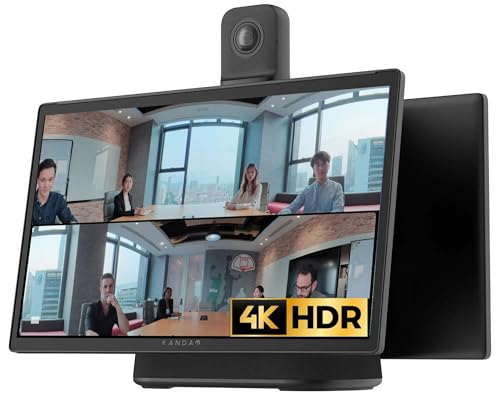
[All in one] - Elevate your video conferencing with KanDao Meeting Ultra, the all-in-one conference room solution featuring dual 4K HDR 360° cameras, a 15.6" FHD touchscreen, built-in microphones, and Hi-Fi speakers
Intel Core Ultra 7 155U, 12C (2P + 8E + 2LPE) / 14T, Max Turbo up to 4.8GHz, 12MB. This new Intel Core Ultra processor delivers the next generation of hybrid architecture for supercharged computing. Thanks to a three tier multi-processing unit, business users can manage complex workloads by sending the right task to the right engine at the right time. A CPU manages lightweight low-latency AI tasks, a GPU manages media and visual AI rendering, and an NPU, manages sustained AI and AI offload.
Frequently Asked Questions
How to Decide Bitrate for Streaming?
To decide bitrate for streaming, one must consider resolution settings, internet speed, platform requirements, and encoder types. Prioritize bitrate optimization for streaming quality, while addressing audio quality and adaptive bitrate to enhance viewer experience and mitigate buffering issues.
Can I Stream at 8000 Bitrate on Twitch?
Streaming at 8,000 kbps on Twitch is possible, but high bitrate advantages must be weighed against viewer experience impacts and bandwidth requirements. Ideal resolution choices and encoding settings preferences are pivotal to effective live streaming performance.
Is 6000 Bitrate Too High for Twitch?
Six thousand bitrate may be high for Twitch streaming depending on individual internet connection and encoding settings. While it guarantees good video quality and frame rates, balancing with hardware requirements and stream stability enhances overall viewer experience.
What Is the Best Bitrate for Multistreaming?
The best bitrate for multistreaming balances ideal resolution with platform requirements, considering bandwidth and encoding settings. High internet speed and compatible hardware enhance stream quality and audio quality while minimizing GPU usage for improved viewer experience.