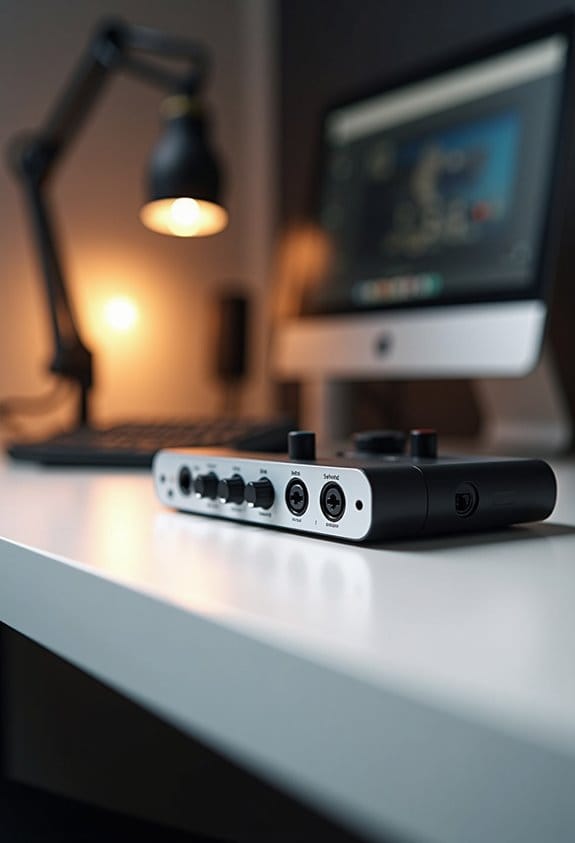

An audio interface is essential for streamers. It converts analog signals from microphones into digital audio, enhancing sound quality considerably. With features like multiple XLR inputs, phantom power, and low-latency monitoring, streamers can deliver clearer audio. Choosing the right interface involves considering the number of inputs, compatibility with software, and high signal-to-noise ratios for improved clarity. Setting it up requires proper connection, gain adjustments, and monitoring levels. Read on to discover more tips for optimizing audio performance.
Key Takeaways
- An audio interface converts analog microphone signals into digital audio for superior sound quality in streaming setups.
- It provides essential features like phantom power for condenser mics and multiple inputs for guest connections.
- Low-latency monitoring allows streamers to hear their audio in real-time, crucial for live interactions.
- Selecting the right interface involves considering the number of inputs/outputs and ensuring compatibility with streaming software.
- Regular monitoring and maintenance of audio levels help avoid distortion and enhance clarity in streamed content.
What Is an Audio Interface and How Does It Work?
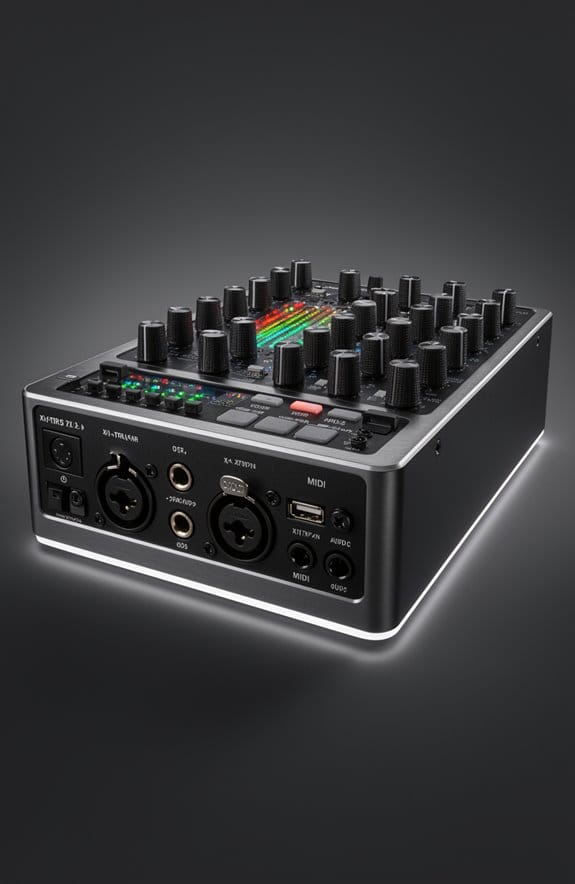
Hey there! So, let’s talk about the audio interface. If you’re serious about streaming, it’s basically the heart of your setup. It takes those analog signals, like the sound from your microphone, and turns them into digital audio that your computer can understand. Think of it as the middleman that connects your mic to your computer.
Most audio interfaces have XLR inputs just for microphones. This professional connection really boosts your audio quality. For instance, if you’re using a high-end mic, an audio interface can give you better sample rates and bit depths than what you’d get with your typical computer sound card. This means crisper, clearer sound for your audience.
Another handy feature is phantom power. This provides 48V to support condenser microphones, which are great for capturing detailed vocals. Plus, many audio interfaces have a low-latency monitoring option, so you can hear yourself in real time without any annoying delays. This is crucial for staying in sync while streaming. Many models also offer zero-latency monitoring to ensure live sound feedback without any distracting delay.
Recommended Products

Accompaniment Styles add a "backing band" when you play or perform for dynamic and professional results. Customize and personalize your music while maintaining control over chord changes and arrangements.

8 award-winning Midas PRO mic preamps and 8 Midas PRO outputs onboard

DuoPre XLR Microphone preamps, including 48V Phantom power for condenser microphones and up to 69dB of gain. Each preamp uses two gain stages to provide a full and accurate sound across the entire gain range with enough power for even the most gain hungry mics.
Why Is Quality Audio Essential for Streamers?

Hey! You know how important quality audio is for streamers, right? It can really make or break how the audience enjoys a stream. When the sound is clear and crisp, viewers stay more engaged, whereas if there’s a ton of background noise, it just gets frustrating! That’s why many streamers invest in dedicated audio interfaces.
These gadgets can dramatically improve sound quality compared to standard built-in sound cards. For example, when you use a good microphone and a quality preamp through an interface, you get that clean, clear sound that’s essential for connecting with your audience. Plus, with features like latency-free monitoring, streamers can hear exactly what they’re broadcasting in real time. This helps them fine-tune their delivery, making their streams more polished and professional.
Many high-end mobile microphones also feature adaptive AI noise cancellation, which can greatly enhance audio clarity even in noisy environments. In the long run, having a solid audio interface gives you the flexibility to use different microphones and instruments as your content evolves. It’s like having a little upgrade insurance for your streaming setup! Speaking of upgrades, let’s talk about microphones next—there’s a lot of variety out there that can really enhance your audio game!
Key Advantages of Audio Interfaces for Streaming

Hey! So, let’s chat about the advantages of using audio interfaces for streaming. If you’re serious about your audio game, these devices can really elevate your streaming experience. Essentially, audio interfaces act like translators for sound. They take the analog signals from your microphone and convert them into digital signals, which means your voice sounds clearer and more professional on the other end.
One of the coolest features is low-latency monitoring. This just means you hear your own audio in real-time, which is super important for keeping your delivery on point. Imagine you’re streaming and want to know how you sound without any lag—this feature has your back. Plus, a lot of audio interfaces can handle multiple inputs, which is great if you want to mix in different sound sources like a guitar or a second microphone for a guest.
Don’t forget about the high-quality preamps! These help boost weaker mic signals, so you get a cleaner sound without all that annoying background noise. And with built-in gain control and effects, you can tweak your tone easily. This way, you can dial in exactly how you want your voice to come across.
Many high-end interfaces offer 24-bit/192kHz resolution, delivering superior sound detail that captures your voice with remarkable clarity.
In a nutshell, if you’re aiming for top-notch audio quality and control during your streams, investing in an audio interface is definitely the way to go. Once you have that sorted, you might want to think about other elements that contribute to a great streaming setup!
Recommended Products

QD-MINI LED: TCL's QD-Mini LED combines the merits of QLED and OLED technologies, transforming the traditional backlight into lighting that is close to pixel-level precision.

4K HDR PROCESSOR X1: See premium 4K pictures, rich with real-world detail and texture. Upscale everything you watch to near-4K with 4K X-Reality PRO.

13.2 CH A/V Receiver (150W + 150W 8ohms, 1kHz, 2ch, THD 0.9%)
Choosing the Right Audio Interface
Hey there! So, let’s talk about choosing the right audio interface. It really makes a world of difference in your streaming setup. First off, think about how many inputs and outputs you need. If you’re planning to hook up multiple microphones or instruments—maybe you’re jamming with a buddy—make sure your interface can handle that.
Another important feature is low-latency monitoring. This is crucial because it lets you hear yourself in real-time, which can save you a ton of frustration when you’re doing live sessions. For instance, if you’re using a condenser microphone, you’ll want an interface that provides phantom power, usually around 48V. This ensures you get the best sound quality possible.
Next, double-check that your audio interface works with your operating system and any streaming software you use. You want everything to run smoothly without hiccups during your stream. Also, consider the connectivity options, like USB or Thunderbolt ports, as these can affect how quickly data transfers. Faster connections often equal better audio quality, which is what we aim for in streaming. Additionally, looking for a device with an 80 dB signal-to-noise ratio can greatly enhance vocal clarity and reduce background noise in your recordings.
Recommended Products
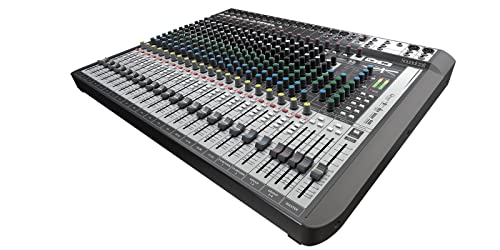
Iconic Soundcraft Ghost mic preamps with ultra-low noise performance

Designed for maximum versatility making it perfect for live sound, home recording, content creation, and live streaming.

For Producers, Musicians, Creators with 8 Mic / Line / Hi-Z Preamp
How to Set Up Your Audio Interface for Optimal Performance
Hey there! Setting up your audio interface the right way can seriously boost your streaming game. First off, plug it into your computer with a USB or Thunderbolt cable—whichever you have on hand. Just a heads-up: don’t skip installing any drivers that come with it; they’re crucial for making everything run smoothly.
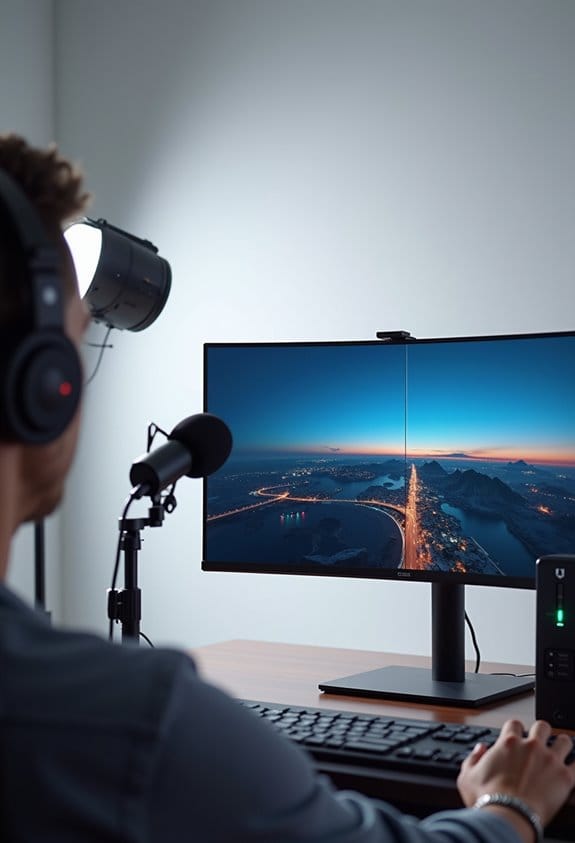
Once that’s done, time to get those microphones connected! If you’re using a condenser mic, remember to turn on phantom power. It’s a small switch, but it makes all the difference. As you adjust the gain levels, keep an eye on the input signals; you want those levels to hang out in the green zone for the best audio quality. Think of it like checking your car’s fuel gauge—better to keep it safe than run on empty!
Now, let’s talk about your Digital Audio Workstation (DAW). You need to configure it to recognize your audio interface as the input and output device. Make sure to set a sample rate that matches your interface—something like 48 kHz is a solid choice for streaming. And for monitoring what you’re recording, plug in your headphones or studio monitors. If your interface has zero-latency monitoring, enable that! It’ll let you hear yourself in real time without any annoying delay, which can really help you fine-tune your performance.
Many interfaces also include high-quality preamps that amplify low-level signals cleanly to ensure your recordings sound professional.
Once you’ve got everything in place, you’re ready to jump into your stream with confidence! What’s next? Let’s explore how to choose the right microphones for your needs.
Recommended Products
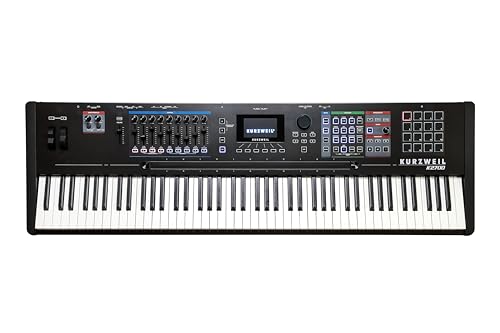
88-Key Fully-Weighted, Workstation

For Recording Studios and Touring

HD Video Switcher with SDI and Scaled HDMI Inputs
How to Fix Common Audio Interface Problems
Hey there! Dealing with audio interface problems can be a real pain, can’t it? But don’t worry; a lot of these issues have easy fixes. First off, you’ll want to check if your audio interface drivers are up to date. Outdated drivers can cause your interface not to be recognized or may lead to poor performance, so that’s a good starting point.
If you’re facing connection hiccups, try plugging the USB into a different port or even reinstalling the drivers. Sometimes, a simple switch can do wonders! Also, pay attention to your recording levels. Aiming to keep them between -12 dBFS and -6 dBFS is ideal; going above that can lead to nasty distortion.
And let’s not forget the cables. Make sure they’re in good shape because worn-out cables can lead to static noises or even drop your connection suddenly. If you want zero-latency monitoring, just enable that in your settings—definitely a lifesaver! Also, using headphones instead of speakers helps prevent any echo feedback that can be so distracting.
For enhanced audio clarity, consider using devices with noise reduction features especially designed for streaming setups.
Recommended Products


RELIABLE CONNECTIVITY: This audio interface for PC and Mac delivers 32x32 channels of analog I/O with 130dB dynamic range, plus dedicated monitor outputs for studio-grade recording and monitoring with precision.

24-bit/192kHz USB 3.0/Thunderbolt Audio/MIDI Interface with 4 Mic/Instrument Preamps
Frequently Asked Questions
Is an Audio Interface Needed for Streaming?
An audio interface is not strictly needed for streaming; however, it enhances audio quality, mitigates stream latency, and guarantees compatibility with recording software. User feedback often highlights its advantages over USB microphones and wireless options in achieving the best sound.
How to Choose the Right Audio Interface?
“Measure twice, cut once” applies here. To choose the right audio interface, evaluate features like input types, output capabilities, latency factors, and portability, while considering brand recommendations, budget, compatibility checks, user reviews, and future expandability.
How to Set up Audio for Streaming?
To set up audio for streaming, he configured the software, guaranteed ideal microphone placement, applied noise reduction techniques, adjusted EQ settings, and utilized headphone monitoring for effective audio routing and sound mixing during live performances.
What Is a Good Audio Level for Streaming?
A good audio level for streaming typically peaks at -12 dBFS to -6 dBFS. Balancing microphone gain and noise control enhances audio clarity, while consistent volume settings improve sound dynamics, stream quality, and listener feedback during audio testing.