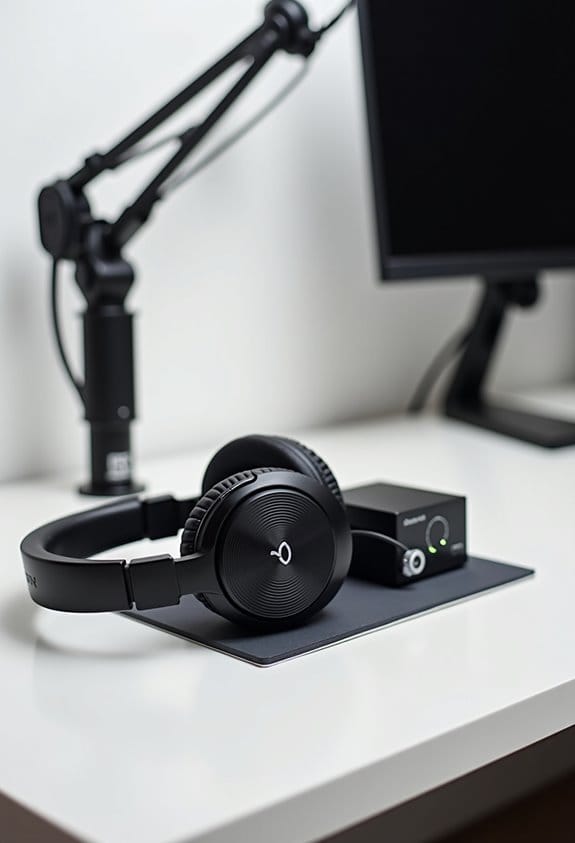

Audio monitoring is vital for streamers. It allows them to hear their broadcast in real-time, catching issues like background noise or echo. Proper audio management leads to a quality experience for viewers. With options like “Monitor Only,” streamers can fine-tune sound without feedback disrupting the stream. Additionally, using high-quality audio interfaces can dramatically enhance clarity and reduce latency. For those working towards professionalism, mastering audio monitoring is essential; discover more tips and tools to elevate your streaming.
Key Takeaways
- Audio monitoring enables real-time sound checking, preventing issues like echo or background noise during live broadcasts.
- It ensures a balanced audio mix, enhancing clarity between game sounds and microphone input.
- Implemented correctly, it fosters a professional appearance, building trust and engagement with the audience.
- Streamers can make immediate adjustments for audio levels, enhancing overall viewer experience and retention.
- Choosing the right OBS monitoring setting is crucial for optimized audio quality during streams.
What Is Audio Monitoring and Why Is It Important for Streamers?

Hey there! Let’s talk about audio monitoring, which is super important for streamers. Basically, audio monitoring means checking your sound in real-time while you’re live. It helps you tweak things like game sounds and microphone levels right on the spot, so your viewers get the best audio experience possible.
Imagine playing a game while your friend is listening—if there’s a weird echo or distracting background noise, that would definitely take away from their experience. By keeping an ear on your audio, you can catch those issues before they mess with your stream. Plus, using an audio interface can make your life easier. For instance, some interfaces have a setting called “Monitor Only (Mute Output)” that lets you hear yourself clearly without feedback ruining the moment.
When you get audio right, it not only looks more professional but also helps build trust with your community. People are more likely to stick around for a stream that sounds great! And who doesn’t want to keep their audience engaged and entertained? Ready to explore other ways to boost your stream? Make sure to understand your microphone’s polar pattern to effectively isolate your voice and reduce background noises, enhancing overall sound quality.
Enhancing Viewer Experience With Audio Monitoring

Hey there! You know, if you’re streaming, one of the best ways to really step up your game is by keeping an ear on your audio during the broadcast. Audio monitoring is super helpful for catching issues like annoying background noise or that pesky echo that can ruin the sound. Imagine you’re in the middle of an intense game, and your viewers can’t hear you because the game sounds are too loud—totally frustrating! So, by balancing your game audio and your microphone input, you can make sure your viewers hear everything clearly.
What’s cool about monitoring audio in real-time is that you can fix problems on the fly. Like, if you notice your voice is a bit too soft compared to the game, you can adjust it right away before it drives someone away from your stream. Plus, when you’re juggling multiple sound sources, you come off as super professional, which really helps build trust with your audience.
Ultimately, when you put in that extra effort for quality audio, your viewers tend to stick around longer. They’ll appreciate the clear delivery of your commentary, and it keeps them engaged throughout your stream. And you know, that’s just one piece of the puzzle—let’s chat about how visuals can impact their experience too! Using a USB audio interface with zero-latency monitoring can significantly improve live audio feedback, making your stream sound flawless.
Choosing the Right Audio Monitoring Option for Your Needs

Choosing the right audio monitoring option is super important for getting the best streaming quality. If you’re using OBS, you’ve got a few different settings to play with that can really make a difference. For example, you might want to start with “Monitor Off” if you don’t need any live feedback. This setting helps avoid echo, keeping things nice and smooth.
On the other hand, if you’re tweaking mic levels and want to hear what you’re doing without the audience catching it, go for the “Monitor Only (Mute Output)” option. This is especially handy when you’re working with audio mixers or specific devices. Picture this: you’re adjusting your voice levels to sound crystal clear, but you don’t want those adjustments to hit the live stream until you’re ready.
Now, if you’re running a multi-camera setup, “Monitor and Output” is the way to go. It lets you listen to the audio while also sending it to your viewers. So you can catch any issues live but still keep your audience engaged with what they’re hearing. It’s all about finding the right fit for your setup, which will lead us into discussing specific gear you might consider for your streaming needs. Using an audio interface with ultra-low latency monitoring can make a huge difference in achieving real-time audio feedback without lag.
Solutions for Common Audio Issues Streamers Encounter
Hey! If you’re streaming and dealing with pesky audio issues, you’re definitely not alone. Many streamers experience frustrating problems like echoing sounds that can mess up a live broadcast. When this happens, try using the “Monitor Only (Mute Output)” option in OBS; it’s a simple fix to help eliminate that feedback loop.
Now, if your external microphone isn’t being picked up, that can be a real hassle too. First, double-check your audio settings in OBS. Make sure your microphone is plugged in properly; sometimes, just re-seating the connection does the trick. And if there’s no sound at all, don’t forget to look at your audio device settings both in OBS and on your system. For instance, if you’re using headphones, ensure they’re fully connected and set as the default playback device.
Audio sync issues can be another pain, but here’s a tip: try to match the sample rates across all your devices. This means making sure your mic and your recording software are set to the same settings, which can help reduce lag. Also, if you notice that the stream lags while you’re streaming games, closing out any resource-heavy applications can make a world of difference.
Lastly, don’t hesitate to ask your viewers about the audio quality during your stream. Their feedback can help you make quick adjustments, leading to a much better experience for everyone involved! As you get a handle on these common audio issues, you’ll be well on your way to delivering top-notch streams. Speaking of improvement, let’s talk about how to enhance your overall stream quality next! Streaming platforms often provide adaptive bitrate streaming to ensure your audio and video quality adjust smoothly with internet speeds.
How Audio Interfaces Boost Your Audio Monitoring Game
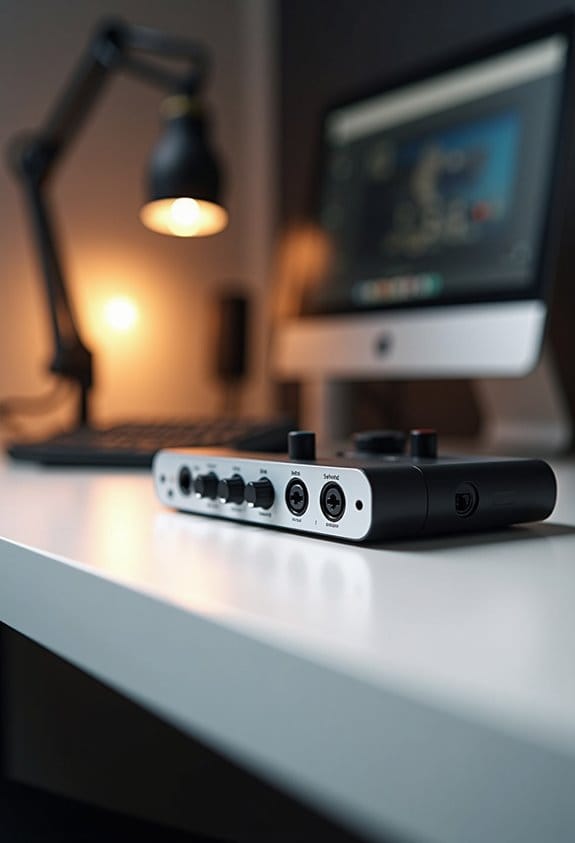
Hey! If you’re into content creation, let’s chat about how audio interfaces can seriously up your audio monitoring game. Basically, these nifty devices take the sound from your microphones and turn it into a digital format that sounds way better than what you’d get from a standard sound card. Imagine you’re streaming your gameplay; with an audio interface, you can hear exactly what you’re saying without any annoying delays – this is called latency-free monitoring.
One of the best perks is the high-quality preamps they come with. These preamps boost your microphone’s signal while cutting down on background noise, so your voice shines through crystal clear. For example, if you use a condenser microphone that needs phantom power, an audio interface often has that feature built in, letting you take your audio quality to the next level. Plus, many interfaces let you connect multiple audio sources, which means you can easily manage everything from your voice to sound effects all in one place. Many models also offer zero-latency monitoring capabilities that enable real-time audio feedback crucial for maintaining the timing and accuracy during live streaming.
Setting Up Your Audio Monitoring: Essential Tips
Setting up your audio monitoring can really enhance your streaming experience! First off, let’s get into OBS—just open it up and navigate to the Audio tab in the Settings menu. There, you’ll choose your favorite Monitoring Device and save those changes by hitting OK. Easy peasy!
Now, let’s talk sound management. Head over to the Advanced Audio Properties from the Audio Mixer or the Edit menu. This is where the magic happens! You can toggle between options like “Monitor Off,” “Monitor Only (Mute Output),” or “Monitor and Output.” If you ever hear echoes, real easy fix—just select “Monitor Only.” This way, your microphone won’t catch any audio from your speakers, which keeps things clear.
Oh, and don’t forget to grab yourself a comfy pair of headphones for monitoring! It’s all about preventing those audio hiccups. Remember to test everything out before you go live—make sure all your settings and connections are rock-solid so you won’t run into surprises during your stream. Speaking of tech checks, let’s explore some tips on ensuring your video quality is just as top-notch!
For the best results, consider using wireless microphone systems with stable frequency connections to maintain clear audio throughout your stream.
Achieving Optimal Audio Quality During Live Streams
Hey there! You know, achieving awesome audio quality is super important for streamers who really want to keep their audience hooked. High-quality sound can make a huge difference in how people experience your stream. If you want to level up your audio game, think about investing in a good sound card and an audio interface. These tools are key because they turn your sound signals into clear audio, and help reduce delays so your voice syncs perfectly with the action on screen.
Before you hit that “Go Live” button, it’s a good idea to routinely test your audio setup. This ensures that pesky background noise and any distortion don’t sneak into your stream. For instance, you might want to use the “Monitor Only (Mute Output)” setting. This allows you to listen to your audio without it echoing back into the stream, keeping everything crisp for your viewers.
And don’t forget to mix your voice, game sounds, and background music smoothly. Finding that sweet spot where all these sounds complement each other can really boost viewer engagement and retention during your live sessions. It’s all about creating a seamless audio experience! Now, let’s talk about some practical tips for optimizing your stream layout.
Using a microphone preamp tube can further enhance your sound quality by adding warmth and richness to your vocals.
Frequently Asked Questions
What Does Audio Monitoring Do?
Audio monitoring provides real-time audio feedback during live streaming, allowing streamers to assess and adjust sound quality. This guarantees peak clarity, balance between game and microphone sounds, and minimizes issues like background noise and echo.
What Does Monitor Audio Mean?
When it comes to audio quality, monitoring audio means listening in real-time to guarantee sound clarity while eliminating latency issues. This proactive approach helps avoid audio feedback, ultimately enhancing the overall sound quality during broadcasts.
What Does Monitoring Device Mean in OBS?
The monitoring device in OBS allows users to select audio output for real-time feedback, enhancing sound clarity and audio sync. Proper configuration improves stream performance, preventing issues such as echo while facilitating immediate adjustments to audio levels.
Should I Use Monitor Audio?
Absolutely, using monitor audio is essential—unless one enjoys the sweet serenade of latency issues! Investing in quality gear recommendations enhances audio quality, transforming broadcasts from chaotic cacophony to symphonic masterpieces, delighting audiences everywhere.